PluginUIEditor — visual designer
Version française : EDITOR_FR.md
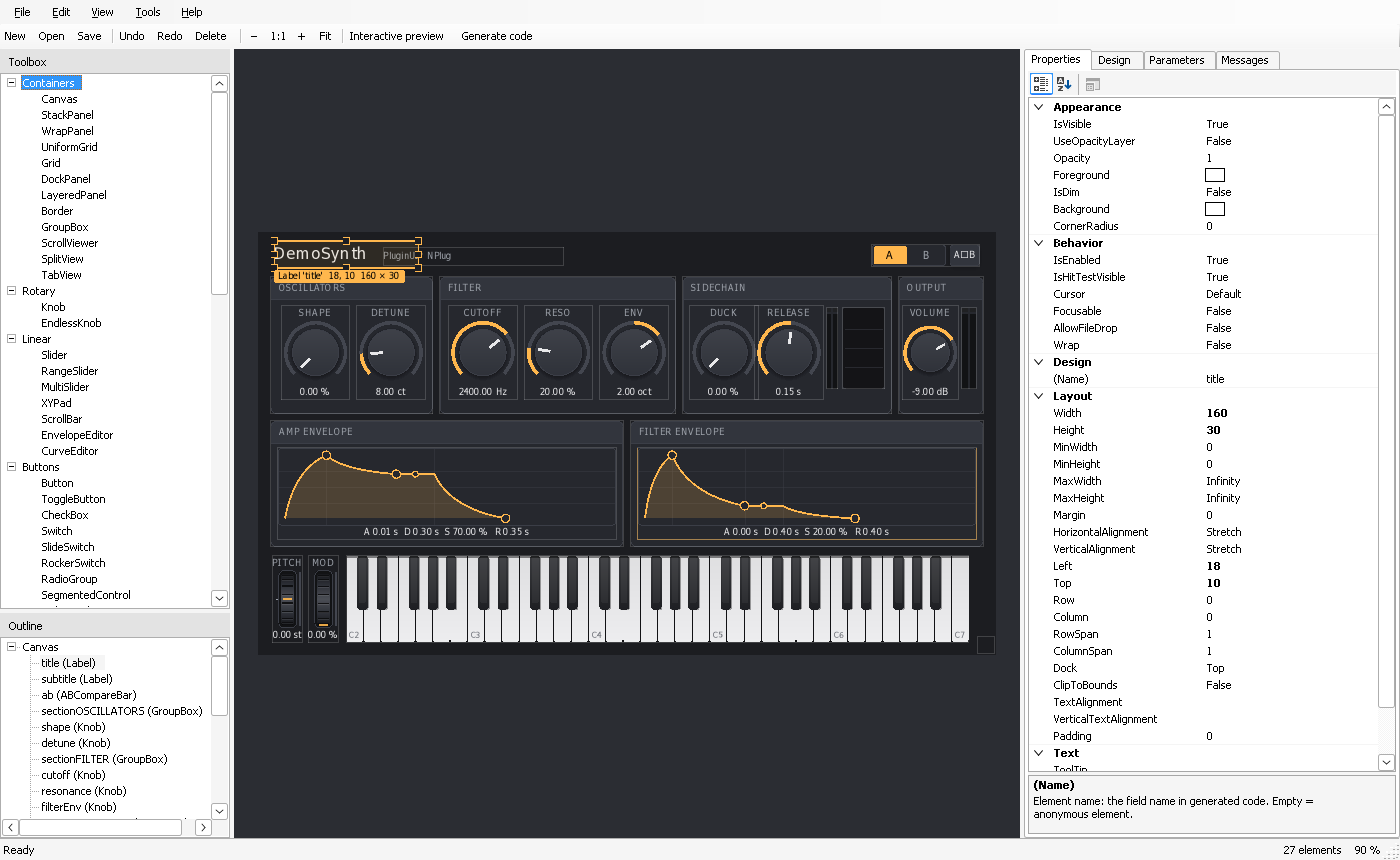
PluginUIEditor is a WinForms application for laying out PluginUI editors visually. The design surface is a real PluginUI host (Win32 + Direct2D), so what you see is exactly what the plug-in draws. A design is saved as a .pluginui file (JSON). The editor can turn that file into:
| Output | What it is | Where it goes |
|---|---|---|
.pluginui |
The design itself: layout, properties, parameter bindings, theme, code generation settings | Next to your editor code, under source control |
.Designer.cs |
C# code that builds the same element tree, with no reflection at run time (NativeAOT) | Compiled into the plug-in |
| Runtime loading | DesignLoader.Build reads a .pluginui file at run time (AOT-safe registry, no reflection serializer) |
Skins, user layouts, tools |
| New project | A complete NPlug effect, instrument or standalone app built around the design | A new folder, ready to build |
| Exports | PNG images (100 % and 200 %), the theme as JSON, the assets the design uses | Documentation, web site, another project |
| Live design bridge | Two-way link between the design file and the editor running in a DAW (debug builds) | Development |
Contents
- Requirements and starting
- The window
- Working with elements
- Properties, bindings and assets
- Design settings and parameters
- Keyboard and mouse
- Generating code
- Loading a design at run time
- New project from a design
- Live design bridge
- Custom elements (extensions)
- Options and language
- The
.pluginuiformat - Library API summary
Requirements and starting
- Windows 10 1809 or later, x64 or ARM64, with the .NET 10 Desktop Runtime.
- Build:
dotnet build tools/PluginUIEditor -c Release(the project also builds on Linux or macOS for CI, but only runs on Windows). - Start:
PluginUIEditor.exe [design.pluginui]. The optional argument opens a design.samples/Designs/DemoSynth.pluginuiis the layout of the demo synthesizer, captured from its editor; it is also copied next to the executable (samples\). PluginUIEditor.exe --snapshot design.pluginui out.png [en|fr]opens the design, selects its first named element and saves a picture of the window (used for this page).
The window
- Toolbox (top left): every element of PluginUI, grouped like CONTROLS.md: containers, rotary, linear, buttons, text, meters, instrument, analysis, pickers, decoration. The tooltip shows the element's XML documentation. Custom elements from extensions get their own groups.
- Outline (bottom left): the element tree. Select, rename in place (F2 or slow click), drag an element onto a container to move it inside, or onto an element to put it before that element.
- Design surface (center): the design rendered by PluginUI at the current zoom, with PluginUI's live editor: selection, handles, snap grid, and an information tag showing the type, name, position and size.
- Properties tab: the properties of the selected element (or of the root when nothing is selected), with the documentation of the selected property at the bottom.
- Design tab: name, size, sizing mode, theme and code generation settings.
- Parameters tab: the parameters the design binds to (see below).
- Messages tab: problems found while loading or building the design (unknown types or properties, missing assets, duplicate names), code generation warnings, extension loading results. The tab title shows the number of messages.
- Status bar: last action, number of elements, zoom.
Working with elements
- Add: drag an element from the toolbox onto the surface; it goes into the deepest container under the mouse, at the drop point, snapped to the grid, with the natural size of the element. A double-click in the toolbox adds the element to the selected container (or to the container of the selected element).
- Containers:
Canvasplaces children atLeft/Top. Layout panels (StackPanel,Grid,DockPanel,WrapPanel,UniformGrid,LayeredPanel) arrange them: setRow,Column,Dock,Margin, alignments in the properties.Border,GroupBoxandScrollViewerhold one child;SplitViewholds two (slotsFirstandSecond; an element that does not fit is ignored, with a message); each child of aTabViewis a tab whose title is its slot ((Slot)in the properties). - Select, move and resize on the surface: click selects (Alt+click selects the parent), drag moves, the eight handles resize; hold Alt while dragging to ignore the grid. With the keyboard: arrows move (1 DIP, Shift: 10 DIPs), Ctrl+arrows resize, Tab cycles through the siblings, Esc deselects. The new layout is recorded as
Left,Top,Width,Height(orMarginin layout panels). - Order: Edit ▸ Bring to front / Send to back changes the drawing order among siblings.
- Clipboard: cut, copy, paste and duplicate work on whole subtrees. The clipboard holds JSON (format
pluginui-nodes), so elements can be pasted into another design or another instance of the editor. Pasted elements get unique names and, on a canvas, an 8 DIP offset. A container that is full (aSplitViewwith two panes, aBorderwith a child) passes the paste to its parent. - Undo / redo: every change, including moves on the surface and edits in the tables, can be undone (300 steps).
- Interactive preview (F5): the controls react to the mouse and keyboard as in the plug-in, bound to preview parameters (see Parameters); the editing shortcuts (Delete, clipboard, undo) then belong to the controls of the design. F5 again returns to editing.
Properties, bindings and assets
The Properties tab lists every designable property of the element type (public, read-write, of a supported type), grouped by category. A property in bold differs from the default of the element and is written in the file; resetting it (right-click ▸ Reset; for values edited as JSON, clearing the text) removes it from the file.
(Name): the element name. It is optional, but it becomes a field of the generated class and the key used by the loader and the live design bridge, so name the elements your code uses. It must be a C# identifier that is not the name of a PluginUI type used by the generated code (Color,Knob,Orientation…) nor the class name; a name already used gets a numeric suffix.- Colors:
#RRGGBBor#RRGGBBAA, with a color picker (…). Thickness,Point,Size,Rect: comma-separated numbers (8, 4or1, 2, 3, 4). Numbers always use a decimal point, whatever the Windows regional settings.- Images and SVG: a path relative to the folder of the design file, with a file picker (
…); save the design first. A file chosen outside the design folder is copied into itsassetsfolder, so that generated projects can embed it. - Text styles, vector styles, paints, film strips, skins and lists are edited as compact JSON, for example a film strip skin:
{"kind":"FilmStrip","Image":"assets/knob.png","FrameCount":128,"Orientation":"Vertical"}. - Bindings (category Binding): properties of type
IParameter(Parameter,XParameter,GainParameter…) are chosen in a list of the design parameters. In the plug-in, the generated code or the loader resolves each name to a real parameter. - Properties of types that cannot be described (events, delegates, arbitrary objects) are not shown: set them in code, in
OnBuilt(see Generating code).
Design settings and parameters
Design tab:
| Setting | Meaning |
|---|---|
| Name | Name of the design (header of generated files, default class name) |
| Size | Logical size of the editor at 100 % (DIPs), width, height |
| Sizing | Fixed (fixed size), ScaleToFit (proportional zoom when the host window is resized), Relayout (the layout adapts to the size) |
| Base theme / Accent | Dark or Light, and an optional accent color. Other theme overrides (palette, typography, metrics) come from an imported theme (File ▸ Import theme) |
| Namespace / Class | Namespace and name of the generated partial class |
| Target | PluginEditorView: the generated class is the other half of a PluginEditorView and overrides Build(); Standalone: only a public BuildDesign() method, for any host |
| Build override | Generates protected override UIElement Build() => BuildDesign(); (PluginEditorView target) |
| Field access | Access modifier of the element fields (private, internal, protected, public) |
Parameters tab: one row per parameter the design binds to, with its name, kind (Linear, Logarithmic, Integer, Toggle, Choice), range, default, unit, decimals and choices (comma-separated). In the editor, these rows create preview parameters, so knobs show plausible values and react in interactive preview. In the plug-in, the names are matched to the real parameters (by title in the generated projects), so keep them identical to the titles of your NPlug parameters. Renaming a parameter here updates the controls bound to it; two parameters cannot share a name. A design captured from a running editor already lists its parameters.
Keyboard and mouse
| Keys | Action |
|---|---|
| Ctrl+N / Ctrl+O / Ctrl+S / Ctrl+Shift+S | New, open, save, save as |
| Ctrl+G | Generate code |
| Ctrl+Shift+N | New project from the design |
| Ctrl+Z / Ctrl+Y (or Ctrl+Shift+Z) | Undo / redo |
| Ctrl+X / Ctrl+C / Ctrl+V / Ctrl+D | Cut, copy, paste, duplicate |
| Delete | Delete the selected element |
| Alt+Up | Select the parent |
| Ctrl+Shift+] / Ctrl+Shift+[ | Bring to front / send to back |
| Arrows, Shift+arrows | Move by 1 / 10 DIPs |
| Ctrl+arrows | Resize |
| Tab / Shift+Tab, Esc | Select the next / previous sibling, deselect |
| Alt+click, Alt+drag | Select the parent, move without the grid |
| F2 (outline) | Rename |
| Ctrl+= / Ctrl+- / Ctrl+0 / Ctrl+9 | Zoom in, zoom out, 100 %, fit to the window |
| F5 | Interactive preview on / off |
| F1 | This documentation |
Editing shortcuts (undo, clipboard, Delete) act on the design only when the surface or the outline has the focus; in text boxes and tables they keep their usual meaning.
Generating code
File ▸ Generate code (Ctrl+G) writes <Class>.Designer.cs, one half of a partial class. Excerpt, for the demo synthesizer:
// 2026/10/18 14:24:00 UTC - DemoSynth
// <auto-generated> … </auto-generated>
partial class DemoSynthDesign
{
    public static readonly Size DesignSize = new Size(820f, 470f);
    public const SizingMode DesignSizing = SizingMode.ScaleToFit;
    public static Theme CreateDesignTheme() => new Theme("Dark", new Palette(…), new Typography(…), new Metrics(…));

    private Knob cutoff = null!;
    private PianoKeyboard keyboard = null!;

    private UIElement BuildDesign()
    {
        var canvas1 = new Canvas();
        cutoff = new Knob { Name = "cutoff", Width = 76f, Height = 104f, Label = "CUTOFF" };
        cutoff.Parameter = BindParameter("Cutoff");
        …
        OnBuilt(canvas1);
        return canvas1;
    }

    protected override UIElement Build() => BuildDesign();
    partial void OnBuilt(UIElement root);
    private partial IParameter? BindParameter(string name);
}
You write the other half:
public sealed partial class DemoSynthDesign : PluginEditorView
{
    public DemoSynthDesign(MyController controller) : base(controller, DesignSize, DesignSizing) { }

    protected override void ConfigureHost(UIHost host) => host.Theme = CreateDesignTheme();

    // Events and everything the design cannot describe.
    partial void OnBuilt(UIElement root) => ConnectKeyboard(keyboard);

    // Design parameter name → plug-in parameter.
    private partial IParameter? BindParameter(string name)
        => Parameters.GetSnapshotParameters(includeBypass: true).FirstOrDefault(p => p.Name == name);
}
- The generated part also has
BindDesignFields(UIElement root), which points the element fields to the elements of another tree built from the same design (used after a live reload). BindParameteris generated only when the design has bindings;LoadImage(string path)andLoadSvg(string path)only when it uses images or SVG (implement them withImageSource.FromResource/SvgImage.FromResource, or let a generated project do it).- The code uses only constructors and property setters: no reflection, NativeAOT-compatible, and the values are exact (
floatliterals round-trip, colors areColor.FromRgb(0xRRGGBB, alpha)). - Generate again after every design change; never edit the
.Designer.csfile. In a project created by the editor, the live design bridge rebuilds the editor from the design file in debug builds.
Loading a design at run time
PluginUI.Design can also build a design at run time, for user skins or layouts chosen by the user. The registry of element types is explicit (no assembly scanning), and JSON is read with JsonDocument, so it works with NativeAOT; register your own elements with registry.Register<MyControl>().
protected override UIElement Build()
{
    using var stream = typeof(MyEditor).Assembly.GetManifestResourceStream("assets/Editor.pluginui")!;
    var warnings = new List<string>();
    var design = DesignJson.Read(new StreamReader(stream).ReadToEnd(), warnings: warnings);
    var result = DesignLoader.Build(design, options: new DesignLoadOptions
    {
        ResolveParameter = DesignLoadOptions.ByName(Parameters.GetSnapshotParameters(includeBypass: true)),
        Assets = new EmbeddedAssetResolver(typeof(MyEditor).Assembly),   // or new FileAssetResolver(folder)
    });
    result.Get<Button>("reset").Clicked += ResetAll;
    return result.Root;   // result.Warnings lists unknown types, missing assets…
}
Elements of unknown type are replaced by a dimmed label (PlaceholderForUnknownTypes), and unknown properties are kept in the document, so a design made with a newer version or with extensions still opens.
New project from a design
File ▸ New project from design (Ctrl+Shift+N) creates a complete project around the current design:
| Field | Meaning |
|---|---|
| Project name | A C# identifier: project, namespace and class names. It cannot be the name of a type or namespace the generated code uses (Knob, PluginUI, NPlug, AudioPlugin…), since it becomes the root namespace |
| Type | VST3 effect, VST3 instrument (event input, on-screen keyboard connected), or Windows application |
| Parent folder | The project is created in <folder>\<name> (an existing folder is never overwritten) |
| Vendor, web site, e-mail | Plug-in factory information |
| Live design bridge | Adds the bridge to debug builds |
Created files, for an instrument named MySynth:
MySynth/
├── MySynth.csproj              NativeAOT plug-in (.vst3), reference to PluginUI.NPlug (which brings NPlug)
├── Directory.Build.props
├── Directory.Build.targets     NativeAOT x64 instruction set (x86-64-v3)
├── README.md
├── .gitignore
├── Plugin/                     MySynthModel (parameters of the design), Processor, Controller, Plugin, LogRangeParameter
└── Editor/
    ├── MySynthEditor.pluginui  The design (open it with PluginUIEditor)
    ├── MySynthEditor.Designer.cs
    ├── MySynthEditor.cs        Your half: OnBuilt, BindParameter (by parameter title), live bridge
    └── assets/                 Images and SVG of the design (embedded resources "assets/…")
The PluginUI folder is taken from Tools ▸ Options and written relative to the project when possible; without it, the project file expects PluginUI in ..\PluginUI\ (a sibling folder of the project), and the PluginUIRoot MSBuild property overrides it. NPlug comes from its NuGet package, brought by PluginUI.NPlug; add <PackageReference Include="NPlug" Version="…" /> to the project to use a newer version. The design parameters become NPlug parameters (linear, logarithmic, integer, toggle, list). The processor of an effect passes the audio through and the instrument plays a monophonic sine: replace them with your DSP.
Live design bridge
In debug builds of a generated project (LIVE_DESIGN symbol), the editor running in the DAW is linked to its .pluginui file:
- Design → DAW (hot reload): save the design in PluginUIEditor and the plug-in window rebuilds itself within a quarter of a second, without reloading the plug-in.
- DAW → design: in the plug-in, Ctrl+Shift+E enters live edit mode; move and resize elements, then Ctrl+S writes the layout (
Left,Top,Width,Height,Margin) of the elements moved since the last save back into the design file, matched by element name. Everything else in the file is preserved, and Ctrl+S with nothing moved writes nothing. PluginUIEditor reloads the file when you open it again. - When the plug-in window opens and the design file is newer than the generated code, a generated debug editor rebuilds itself from the design file, so a
.Designer.csthat was not generated again is not a problem while developing. A reload applies the element tree, the theme and the design size, then points the element fields to the new elements (BindDesignFields) and callsOnBuiltwith the new root.
To add the bridge to an existing editor:
#if DEBUG
private LiveDesignBridge? _bridge;
protected override void OnAttached() => _bridge = new LiveDesignBridge(Host, @"C:\src\MyPlugin\Editor\MyEditor.pluginui",
    design => DesignLoader.Build(design, options: new DesignLoadOptions { ResolveParameter = … }));
protected override void OnRemoved() => _bridge?.Dispose();
#endif
After a reload, fields and event handlers still point to the old elements: handle Reloaded (it receives the DesignBuildResult) to wire the new ones (generated code has BindDesignFields(root) for the fields; generated projects call it, then OnBuilt with the new root).
Custom elements (extensions)
Elements of your own (see EXTENDING.md) can appear in the toolbox: compile them into a class library and add its .dll in Tools ▸ Options ▸ Extension assemblies (one path per line, applied at the next start). Every public, non-abstract UIElement with a public parameterless constructor is registered; [System.ComponentModel.Category("My controls")] on the class chooses its toolbox group (default: the assembly name). An element whose name is already registered is skipped. The Messages tab reports what was loaded.
Without the extension, a design that uses custom elements still opens: they are shown as placeholders and their properties are kept. In your plug-in, register them for the loader (registry.Register<MyControl>()); the generated code needs nothing more, since it uses the classes directly.
Options and language
Tools ▸ Options:
- Interface language: Automatic (follows the Windows display language: French for
fr-*, English otherwise), English or French. Menus, panels, categories, dialogs and messages are translated, as are the texts drawn by PluginUI on the surface (context menus, live edit). Property names stay those of the C# API. Numbers always use a decimal point. - Snap grid in DIPs (0: none).
- PluginUI folder used by new projects.
- Extension assemblies.
The settings are stored in %AppData%\PluginUIEditor\settings.json with the recent files.
The .pluginui format
UTF-8 JSON, indented, stable order (diff-friendly). Numbers use the invariant culture; small numeric tuples are written on one line.
{
  "comment": "2026/10/18 14:24:00 UTC - PluginUI",
  "format": "pluginui",
  "version": 1,
  "name": "DemoSynth",
  "size": [820, 470],
  "sizing": "ScaleToFit",
  "theme": { "base": "Dark", "accent": "#FFB74D" },
  "parameters": [
    { "name": "Cutoff", "kind": "Logarithmic", "min": 20, "max": 20000, "default": 2400, "unit": "Hz", "decimals": 2 }
  ],
  "codegen": { "namespace": "PluginUI.DemoSynth.Editor", "class": "DemoSynthDesign", "target": "PluginEditorView",
               "buildOverride": true, "fieldAccess": "private" },
  "root": {
    "type": "Canvas",
    "children": [
      { "type": "Knob", "name": "cutoff",
        "properties": { "Left": 206, "Top": 86, "Width": 76, "Height": 104, "Label": "CUTOFF" },
        "bindings": { "Parameter": "Cutoff" } }
    ]
  }
}
| Member | Content |
|---|---|
comment |
Optional free text written first (JSON has no comments); generated projects put a date and the project name there |
format, version |
Always "pluginui"; format version (1). A newer version opens with a warning; members this version does not know (in the document, parameters, code generation settings and nodes) are kept and written back, with the version number |
name, size, sizing |
See Design settings |
theme |
base (Dark / Light), accent, and optional palette, typography, metrics objects overriding single values (an unknown field, a value of the wrong type or an unknown section is not applied, reported, and kept in the file) |
parameters |
name, kind, min, max, default, unit, decimals, choices |
codegen |
namespace, class, target, buildOverride, fieldAccess |
root |
The root node |
| node | type (class name), name, slot (tab title, split pane), properties (only values different from the defaults), bindings (property → parameter name), children |
Property values:
| Property type | JSON |
|---|---|
string, bool, numbers, char, enums |
JSON value; enums as their name; NaN and infinities as "NaN", "Infinity", "-Infinity" |
Color |
"#RRGGBB", "#RRGGBBAA", or [r, g, b, a] (0–1) when a channel is not on the 8-bit grid |
Thickness, Point, Size, Rect |
Number arrays (8, [8, 4], [l, t, r, b], [x, y], [w, h], [x, y, w, h]) |
TextStyle, VectorStyle |
Objects with the record members that differ from the defaults |
Paint |
A color, or {"type": "linear" or "radial", "stops": [[offset, color], …], …} |
Lists of string, float, double |
Arrays |
ImageSource, SvgImage |
Asset path, relative to the design file ("assets/background.png") |
FilmStrip |
{"Image": "…", "FrameCount": 64, "Orientation": "Vertical"} |
IControlSkin |
{"kind": "FilmStrip" / "ImageRotary" / "SvgRotary" / "ImageState", …} with the image paths and options of the skin |
The clipboard and nodes files use the same node format inside {"format": "pluginui-nodes", "nodes": [ … ]}. Exported themes use {"format": "pluginui-theme", …} and can be imported into any design.
Library API summary
All in the PluginUI.Design namespace (src/PluginUI.Design, AOT-safe, documented with XML comments):
| Type | Role |
|---|---|
DesignDocument, DesignNode, DesignParameter, DesignTheme, CodegenSettings |
The design in memory |
DesignJson |
Load / Read / Save / Write of .pluginui files; WriteNodes / ReadNodes for the clipboard |
DesignTypeRegistry, DesignTypeInfo, DesignPropertyInfo |
Designable types and properties; CreateDefault(), Register<T>() |
DesignLoader, DesignLoadOptions, DesignBuildResult |
Build a live element tree from a design |
DesignCapture |
Capture a live tree or a whole UIHost as a design (CaptureHost) |
CSharpDesignGenerator |
Generate the .Designer.cs code |
ThemeJson |
Export / import themes, theme ↔ design theme |
DesignValues |
Value conversions (JSON, design values, live values, C#) |
IDesignAssetResolver, FileAssetResolver, EmbeddedAssetResolver |
Load the images and SVG of a design |
LiveDesignBridge |
Link a running editor to its design file |
ProjectScaffolder, ScaffoldOptions |
Create a project from a design |